Garmin Quatix 7 – All Tutorials, Setup, Tips & Tricks
HardReset.Info ·
How to customize Garmin Quatix 7 with watch faces, custom photos, apps, language, time, backlight brightness, alarms, and favorite workouts? How to use Garmin Quatix 7 features like workouts, step tracking, calorie tracking, power saving mode, screenshots, Do Not Disturb, and factory reset? 0:00 Garmin Quatix 7 Unboxing and First Look 13:34 Set Up and Sync with Garmin Connect 25:36 Pair Garmin Quatix 7 with Android Phone 33:53 Pair Garmin Quatix 7 with iPhone 41:51 Turn Off Garmin Quatix 7 42:39 Turn On Garmin Quatix 7 43:43 Stop Workout 45:06 Add Workout to Favorites 46:38 Unpair from Android Phone 48:13 Change Watch Straps 49:56 Disconnect from Wi-Fi Network 51:45 Change Language 53:39 Change Time Manually 55:35 Unpair from iPhone 57:30 Uninstall Applications 59:28 Force Restart Garmin Quatix 7 1:01:29 Adjust Backlight Brightness 1:03:37 Track Steps 1:05:48 Connect to Wi-Fi Network 1:08:00 Take a Screenshot 1:10:32 Start Activity or Workout 1:13:12 Change Watch Face 1:16:06 Set Up Alarm Clock 1:19:01 Enable or Disable Do Not Disturb 1:22:22 Factory Reset Garmin Quatix 7 1:25:52 Install Applications 1:29:22 Track Calories Burned 1:33:07 Download Additional Watch Faces 1:36:55 Enable Power Saving Mode 1:41:41 Enable Phone Notifications on iPhone 1:47:02 Set Custom Watch Face 1:52:28 Enable Phone Notifications on Android
More quatix 7 videos
 GARMIN Quatix 7 – How to Track CaloriesHardReset.Info · Fri, 10 Jul 2026
 GARMIN Quatix 7 – How to Change Watch FaceHardReset.Info · Mon, 29 Jun 2026
 Garmin Tactix 7 AMOLED vs Quatix 7 - AMOLED vs MIP Display TestHardReset.Info · Wed, 17 Jun 2026
 GARMIN Quatix 7 – Enable Phone Notifications on AndroidHardReset.Info · Wed, 10 Jun 2026
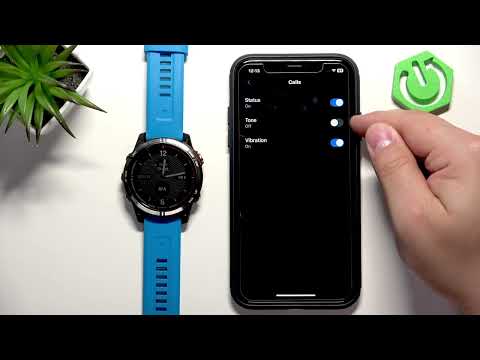 GARMIN Quatix 7 – How to Enable Phone Notifications on iPhoneHardReset.Info · Wed, 10 Jun 2026
 GARMIN Quatix 7 – How to Force RestartHardReset.Info · Wed, 10 Jun 2026
 GARMIN Quatix 7 – How to turn offHardReset.Info · Wed, 10 Jun 2026
 GARMIN Quatix 7 – How to Turn OnHardReset.Info · Wed, 10 Jun 2026